

Preventing cheating in online exams
See the cheating signal at the moment it happens, not after the exam. Off, Warning and Strict modes record browser events and session signals calculated by the server. The teacher sees violations in a live counter, and the time of each event stays in the session journal.
Three modes: Off, Warning and Strict
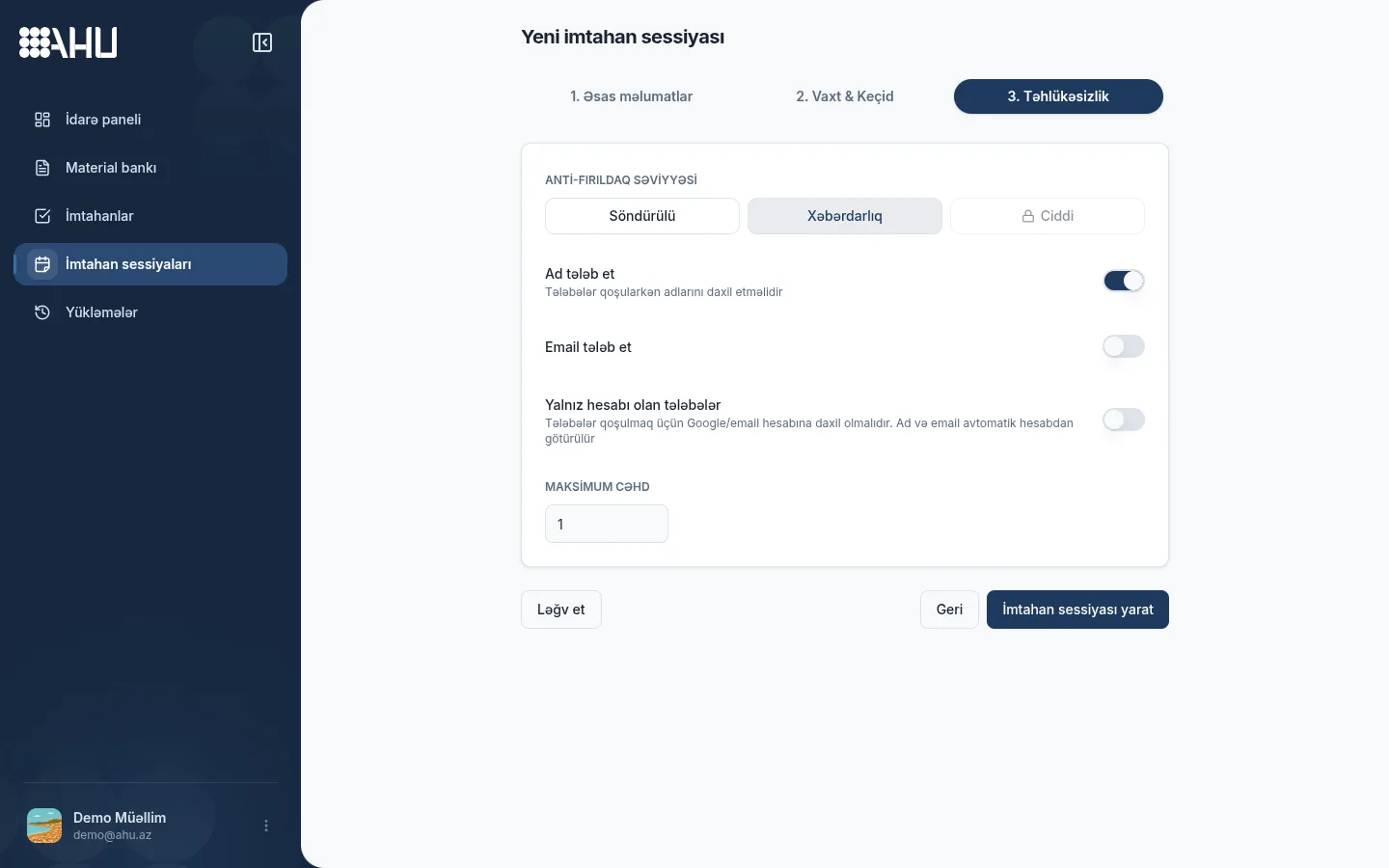
Choose the mode in session settings before the exam. All three modes log the same signals and warn the student; they differ in live notifications and automatic blocking.
- Off Logged, no lock
Everything is logged, no blocking
Events go to the log, and the student sees a “recorded” warning. No automatic block; ordinary events send no live notification, though a multiple-IP event may reach the dashboard.
- Warning Logged and notified
Every event reaches the teacher
The journal is written, the student sees a warning, and every event reaches the teacher as a short, transient notification. There is no block, and the teacher decides.
- Strict Weight threshold and lock
The session stops when the threshold is crossed
Everything in Warning, plus automatic action. When the weighted total hits the threshold, the session stops; the teacher can reinstate the student if it was a mistake.
What is detected
Ahu logs the signals the browser exposes: tab switches, leaving the window, copying, exiting full screen, right-clicks and developer tools. Tools are detected by window size.
The multiple-IP signal comes from the server: it sees the same session opened from another address and logs it once. The server also stamps the time, so the device clock does not matter.
No single event is a verdict. The teacher filters the journal, checks the context and only then decides.
Browser events
- tab switch or leaving the window
- return to the window
- screen hidden
- full-screen exit
- copy attempt
- right click
- developer tools
Session signals
- multiple IPs in the same session
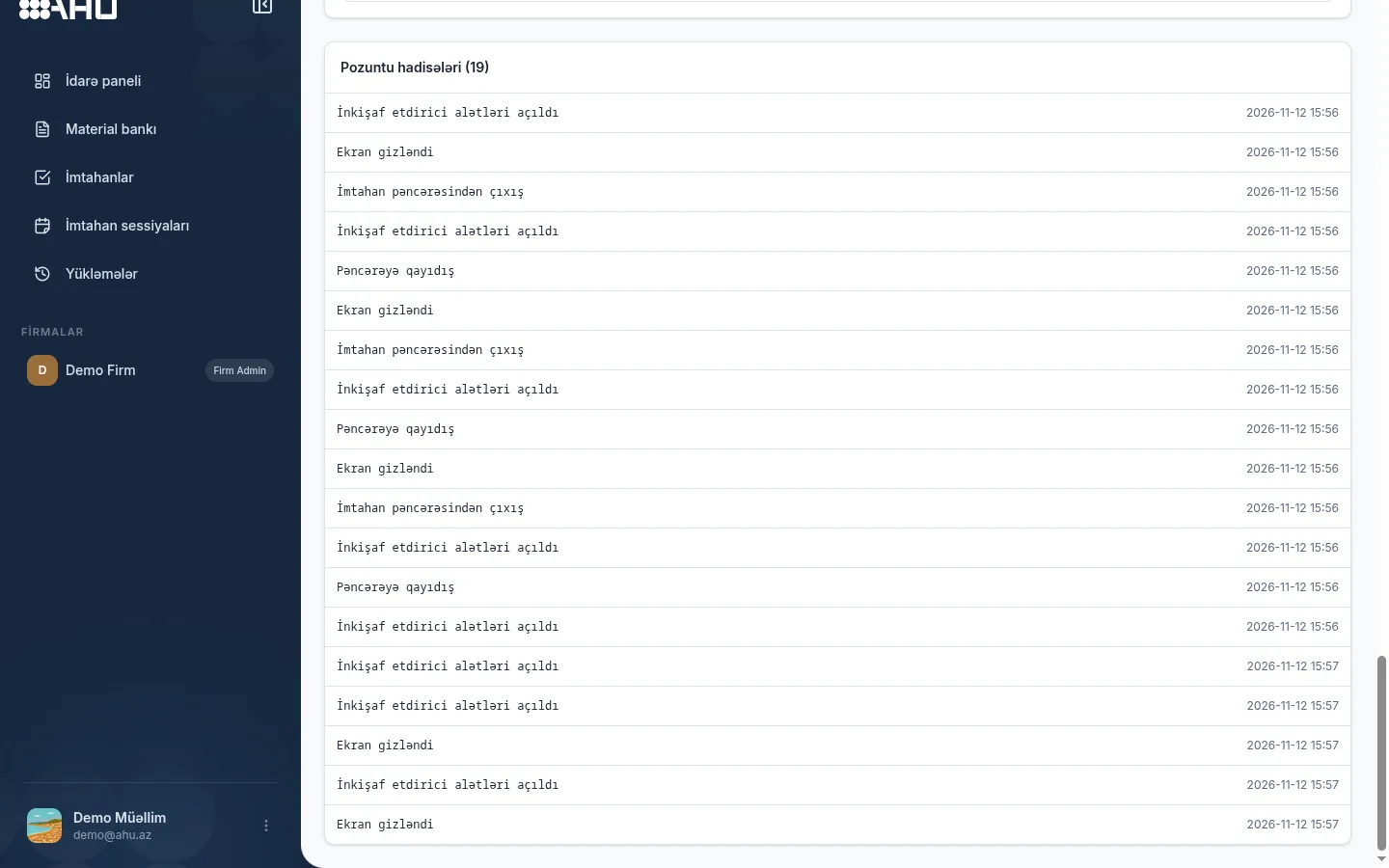
The teacher sees it live
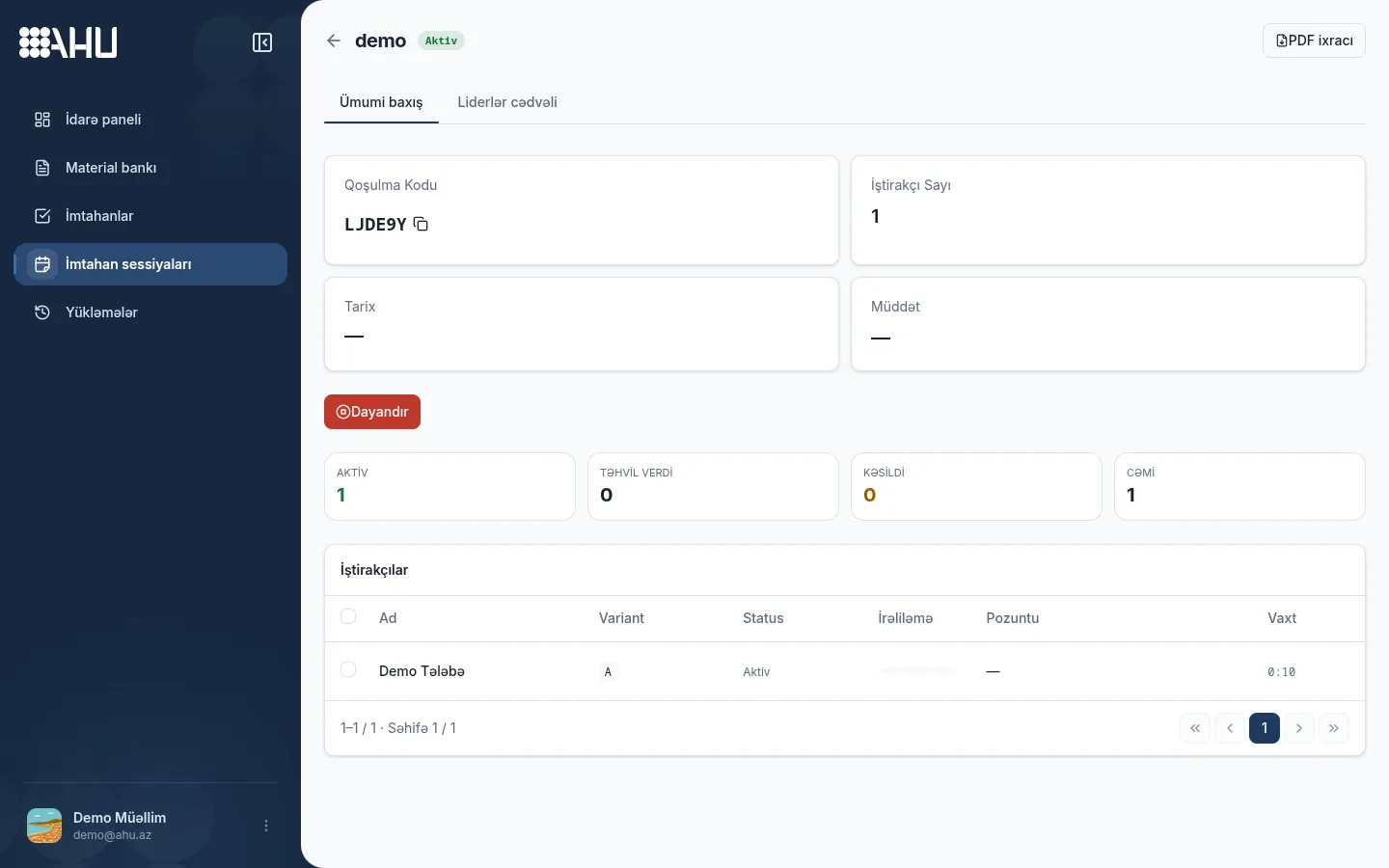
When the session starts, each student's status, progress and violation count sit on one row of the dashboard. In Warning and Strict, every event also reaches the teacher as a short notification.
The notification contains only the student's name and the type of event. The dashboard does not keep a permanent list: the time and sequence of events are in the session journal.
The live channel carries only status and counters; answer text and other students' results never pass through it. Events stay in the log after the exam, so every decision has evidence behind it.
Demo Tələbə: Left the exam window
The notification is a transient toast; the event time stays in the session journal.
Automatic blocking in Strict mode
In Strict mode every event has a weight. The server adds up the weights and stops the session when the threshold set by the teacher is reached; the default threshold is three.
- Log
Event is recorded
Signals are logged with server time. Weights: developer tools and multiple IPs 2; tab switch, screen hidden and full-screen exit 1; copying and right-click 0.5; return to the window 0.
- Threshold
Threshold is crossed
When the total reaches the threshold, the session stops. At the default 3, three tab switches, opening developer tools twice or one tab switch with multiple IPs triggers a block.
- Reinstate
The teacher reinstates
The teacher reviews the events and reinstates the student. Reinstatement resets the weight window, so earlier events do not create a new block.
Which plan unlocks Strict mode
Off and Warning work on every plan, including Free. Strict starts at Professional for sole teachers and comes with Firm Standard and Firm Premium.
An unavailable mode shows a lock when you create a session. Upgrade the plan and it opens; the demo account runs on Free, so Strict stays locked.
What we do not do
- No webcam
- No microphone
- No screen recording
Ahu does not open the camera or microphone, record the screen or track browsing on other sites. That is not a technical choice; it is a promise in the privacy policy.
Monitoring covers only browser events on the exam page and session signals from the server. No face recognition, voice analysis or extra software, and keys outside answer fields are not recorded.
The student sees a specific warning on every event. If the session is stopped, the reason is shown on screen.
Privacy policyWhich mode for which situation
The teacher decides. The table shows the difference between the three modes at a glance.
| Capability | Off | Warning | Strict |
|---|---|---|---|
| Event is written to the journal | Yes | Yes | Yes |
| The student sees a warning | Yes | Yes | Yes |
| Live notification to the teacher | Only a multiple IP event | Yes | Yes |
| Automatic block | No | No | Yes, when the weight threshold is reached |
| Which plan unlocks it | All plans | All plans | Professional and Expert; firm Standard and Premium |
| Typical use | Practice and diagnostics | Homework and monitoring | Formal assessment |
Swipe the table sideways for the full view.
Frequently asked questions
What is the difference between the anti-cheat modes?
All three modes log events and tell the student. Off has no block or ordinary live notification; Warning sends every event to the teacher; Strict stops the session at the weight threshold.
Which plan unlocks Strict mode?
On Professional and Expert for sole teachers, and on Firm Standard and Firm Premium. Off and Warning work on every plan, including Free, so you can try monitoring from day one.
What can the teacher do when a session is blocked automatically?
The teacher can review the events and reinstate the student. Reinstatement resets the weight window and the student continues the exam. The block decision stays in the journal with its evidence.
Is a webcam or microphone used?
No. Ahu uses no camera, microphone or screen recording; only browser events and server session signals are recorded, as the privacy policy states.
How is the time of events determined?
The server records all times, and the device clock is not trusted. Changing the clock, refreshing the page or closing and reopening the window does not change the order of the journal or the decision.
Related pages
Start with monitoring
Create a session, choose the mode and give students the join code. Warning mode is available on the Free plan too, while Strict mode starts from Professional.